OTF
Introduction
On-the-fly (OTF) mapping is an observing technique in which the telescope is driven smoothly and rapidly across a field while data and the antenna position information are recorded continuously. This technique is in contrast to traditional mapping of discrete positions on the sky, which is sometimes called “step-and-integrate” or “point-and-shoot” mapping. There are several advantages to OTF mapping. First, telescope overhead is reduced significantly since a specific position on the sky does not have to be acquired within a given tolerance. Second, since the entire field is covered rapidly, properties of the atmosphere and the system, including antenna pointing and calibration, change less in comparison to a conventional point-and-shoot map. Systematic changes may occur from map to map, but such effects average down rapidly and may be correctable by cross correlation techniques. In general, global changes from map to map are more benign and easier to correct than drifts across a single map field.
When to OTF Map
In principle, the OTF technique should be a superior way to make almost any map. It is particularly efficient for large fields and relatively strong emission. In these cases, one gains considerable observing time from the low telescope overhead. We strongly recommend OTF mapping in these cases. OTF can, and has, been used to advantage for small fields and weaker lines. For small fields, however, the telescope must turn around at the end of a row more often. Weak lines may require many, many coverages of the field that can lead to a substantial data reduction chore requiring many hours of your time and a fast computer with gigabytes of disk space. This is a judgment the observer must make. Note that aside from the minimum hardware integration period imposed by the backends, all OTF integrations are done in post-processing analysis software rather than by the real-time systems.
Spectral line OTF guidelines are arbitrary, but we would recommend that for any field > 6’ in width, you should most definitely use OTF. OTF may be entirely appropriate for smaller fields, but the advantages may not be as marked. If the field is only a few grid points across, you should probably use conventional grid mapping. If the emission is weak, you may elect to use a slow scanning rate to reduce the number of field coverage's required. Be advised that the OTF technique is constantly evolving. Observing options are being enhanced, computers are being upgraded, and analysis software is being developed. Accordingly, the criteria for choosing which observing algorithm to use are also evolving. Check with us before planning your observations.
How OTF Observing Works
Before starting an OTF map, you configure the telescope control system for the width of the field, the scanning rate, the row spacing, and a few other things. For spectral line OTF, the map is taken in a total power observing mode in the sense that you take a calibration spectrum (a vane CAL) and a total power OFF, followed by one or more total power scanning rows, typically made up of hundreds of individual spectra (the ONs). For continuum OTF, the map is acquired using the continuum beam-switched observing mode. In this mode, the sub-reflector is switched between two positions (the “+” and “-” beam) in azimuth while the telescope scans. Each of the individual spectra or continuum “+” and “-” beam total power measurements is tagged with the actual antenna encoder positions. As a result, antenna tracking errors caused by wind gusts, for example, are actually recorded and taken into account in the data analysis stage.
For spectral line OTF, the same CAL and OFF are used to calibrate all of the ONs in the scanning rows until another OFF is taken. Each total power OFF is given its own scan number. All of the spectra or continuum “+” and “-” beam total power measurements in each scanning row are concatenated along with arrays of time and position information and stored on disk under a single scan number with a single header. The header information for each scanning row contains the scan number of the previous OFF (for spectral line OTF) and CAL.
Given the scanning parameters, the positioning system is configured for tracking rates, row offsets, and the duration of a scanning row. The spectra line data-taking backend tells the tracking system to move to position and begin scanning. Using some handshaking bits on the telescope’s status and monitor (SAM) bus, the two systems are synchronized at the start of each row. In addition, both the tracking and backend computers have IRIG clock cards that are driven by the observatory rubidium standard clock. The data backend reads out the spectrometers system every 100 milliseconds for spectral line OTF. The continuum data system is read out every 250 milliseconds. For both spectral line and continuum OTF, the data backend tags each data parcel with the UT time stamp. Since the Millimeter Autocorrelator (MAC) is a digital autocorrelation device, before the data can be read out Fourier transforms of the 100 millisecond data samples are required. To make data analysis as fast as possible, the FFT’s are performed in real-time by the MAC control computers. Every 10 milliseconds, the tracking computer records its Az/El position with respect to the tracking system is merged with the data. An interpolation of the position information is done to align slight differences between the time stamps of the two data sets.
On The Fly Analysis using Linuxpops
It is possible to analyze OTF data using Linuxpops. It may not provide the same rigorous tools of say APIS++ or Class, but provides a very portable and fast method of OTF analysis. Single OTF maps and large mosaics can be gridded with equal ease.
Usage of OTF in Linuxpops is best illustrated using a series of examples.
Setting up OTF
First, select a unused environment:
Linuxpops
Linuxpops > switch 8
Linuxpops(O) >> # Switching to Environment SSK
OTFLinuxpops(O) >> # Loading File /home/
data/ssk/sdd_ffb.ssk_004
Linuxpops(O) >> # Data File is SMT Data
Linuxpops(O) >> # Found 1688 Scans; 4 Sources
Linuxpops(O) >> # To DATASERV: filename /home/
data/ssk/sdd_ffb.ssk_004
Linuxpops(O) >> # To DATASERV:
gfilename /home/
data/ssk/gsdd_ffb.ssk_004
Linuxpops(O) >>
Set up some standard parameters.
Linuxpops(O) >>
Linuxpops(O) >> filename /home/
data/ssk/sdd_ffb.ssk_022
Linuxpops(O) >> freq 230.538
Linuxpops(O) >> source CO21_025
Linuxpops(O) >> list
Source Freq UT-Date UTC Scan# NS Time Az El
Mode SB BKend Tsys Tcal Res MapY Cols MapY Rows
CO21_025 230.537990 2019.1215 22.57 3478.01 1 36 339.0 80.2 LINETPMF
H-
USB F1M-HU 216 305 1.00 0.0 0.0
CO21_025 230.537990 2019.1215 22.58 3479.01 640 64 324.4 81.6 LINEOTF
H-
USB F1M-HU 216 305 1.00 1 64 1 60
CO21_025 230.537990 2019.1215 22.60 3480.01 640 64 322.9 81.4 LINEOTF
H-
USB F1M-HU 216 305 1.00 1 64 2 60
CO21_025 230.537990 2019.1215 22.63 3481.01 1 36 335.3 79.9 LINETPMF
H-
USB F1M-HU 221 305 1.00 0.0 0.0
CO21_025 230.537990 2019.1215 22.64 3482.01 640 64 320.8 81.1 LINEOTF
H-
USB F1M-HU 221 305 1.00 1 64 3 60
CO21_025 230.537990 2019.1215 22.67 3483.01 640 64 319.4 80.9 LINEOTF
H-
USB F1M-HU 221 305 1.00 1 64 4 60
...
Linuxpops(O) >>
As can be seen, the file consists of OTF and TPMF scans; on and off scans.
Next, load one OTF scan into Linuxpops:
Linuxpops(O) >>
Linuxpops(O) >> get 3479.01
Linuxpops(O) >> # Fetching Scan 3479.01 into
H0Linuxpops(O) >> # Scan is of
OTF type: Using Internal
data array
Linuxpops(O) >> #
read_scan(): Returned: 3479.00
Linuxpops(O) >>
Note: Because OTF scans can be huge, the scan reading routine uses a dynamically allocated array to hold the actual data and not the 'Image Holders' that normally are used for plotting. All other info are stored in the Holder (H0-H9) though.
Starting an OTF session:
Linuxpops(O) >>
Linuxpops >> # Starting Dataserv
OTF Tool
Linuxpops(O) >>
An additional 1-3 windows will, eventually, show up.
Viewing representative OTF samples
It's possible to view individual 100mS samples of a OTF row. Do the following:
Linuxpops(O) >>
Linuxpops(O) >>
otf /d 3479.01 1
Linuxpops(O) >>
Linuxpops will display the 'second' 100mS spectra (zero based numbering) contained in scan 3479.01
Linuxpops(O) >>
Linuxpops(O) >>
otf /d 3479.01 1 10
Linuxpops(O) >>
will display the average of 10 samples starting at the second spectra. (The equivalent of 1 second total)
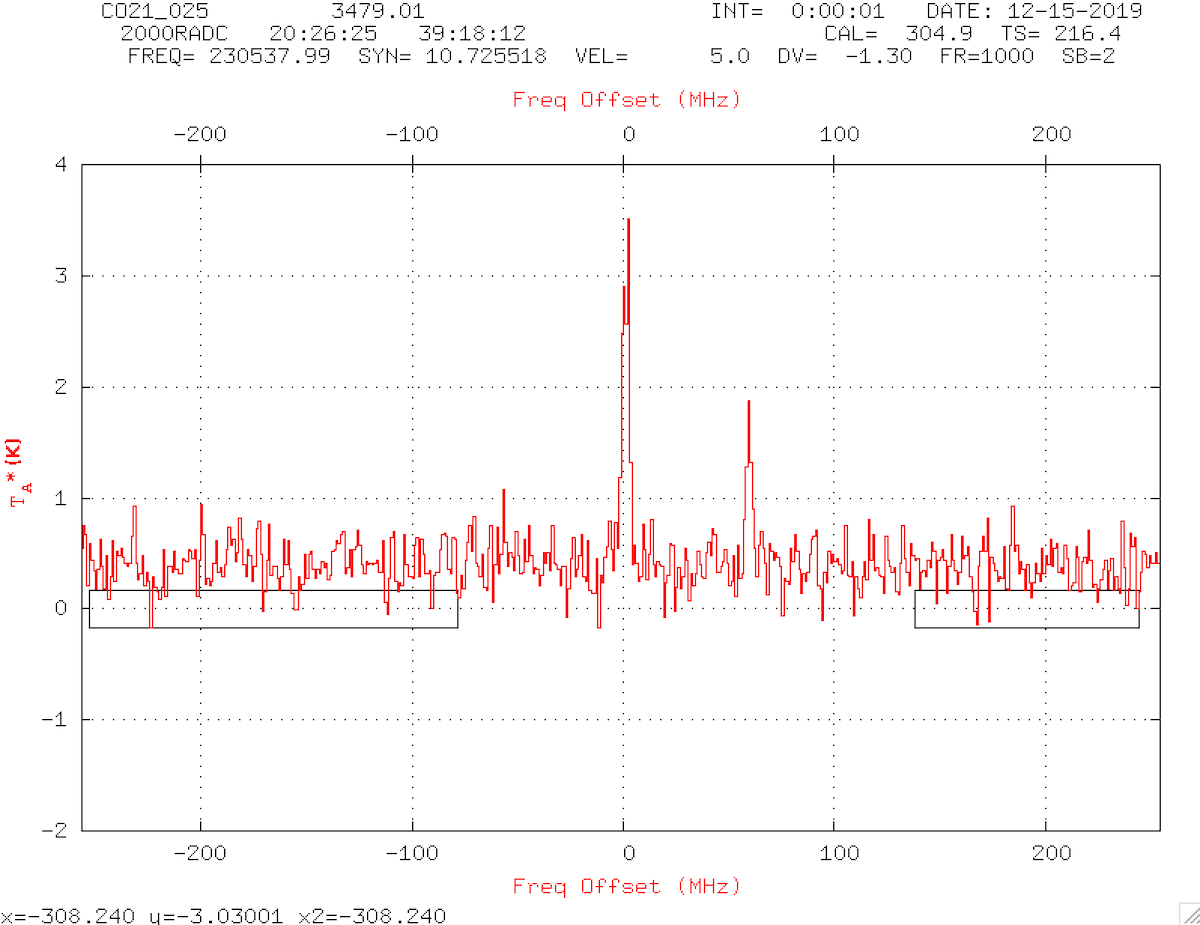
Figure 1: One second worth of OTF samples starting at sample 2
Once the spectra is loaded into Linuxpops like this, it can be manipulated the same as any Spectral Line plot. i.e. define baselines, identify bad channels etc.
Now would be a good time to define a couple of baseline area's:
Linuxpops(O) >>
Linuxpops(O) >> bset
Enter Number of Baseline Regions [ Up to 64]: 2
Linuxpops(O) >> # Displaying Plot:
H0Linuxpops(O) >> # Click Left Mouse Button on Left Edge of Segment 1
Linuxpops(O) >> # ccur set to 4
Linuxpops(O) >> # Click Left Mouse Button on Right Edge of Segment 1
Linuxpops(O) >> # ccur set to 178
Linuxpops(O) >> # Click Left Mouse Button on Left Edge of Segment 2
Linuxpops(O) >> # ccur set to 395
Linuxpops(O) >> # Click Left Mouse Button on Right Edge of Segment 2
Linuxpops(O) >> # ccur set to 501
Linuxpops(O) >> # Baseline Regions: [ 0] 4 178
Linuxpops(O) >> # [ 1] 395 501
Linuxpops(O) >>
NOTE: You may have to refine your baseline selections as the full extend of the Map dynamics come into focus.
Setting up a Single Map
Once you have OTF scan loaded we can automatically configure a map based on the parameters of the OTF scan.
Linuxpops(O) >>
Linuxpops(O) >> # Configuring OTF map from Header
Linuxpops(O) >> #
autoSetEBscan(): Locating LINEOTF scans for source: CO21_025
Linuxpops(O) >> # autoSetEBscan(): Setting bscan: 3479, escan: 3567
Linuxpops(O) >>
To see the resulting parameters:
Linuxpops(O) >>
Defined Dynamic Variables
E: otf_cols: (int) 280
E: otf_rows: (int) 264
E: otf_map_xcell: (int) 10
E: otf_map_ycell: (int) 10
E: otf_bint_chan: (int) 254 Beginning integration channel/region
E: otf_eint_chan: (int) 258 Ending integration channel/region
E: otf_3d_bchan: (int) 231 Beginning channel of a 3d
data cube
E: otf_3d_echan: (
int) 281 Ending channel of a 3d
data cube
E: otf_3d_interp: (int) 8 # of planes to create b/t channels in a 3d
data cube
E: otf_movie_bchan: (int) 216 Beginning channel of 'vel' run
E: otf_movie_echan: (int) 296 Ending channel of 'vel' run
E: otf_movie_nchan: (
int) 2 Number of channels to
avg for 'vel' run
E: otf_cutoff: (int) 0 % of the bottom-end of
data to cut off
E: otf_baselines: (int) 1 Remove baselines from individual spectral
E: otf_color: (int) 1 gray, pseudo, flame1, flame2, flame3, flame4, flame5, flame6
E: otf_ephem_obj: (int) 0 If non-zero, Ignore source Ra & Dec when gridding
E: otf_single_spec: (int) 256 Which Spectral Channel to plot in lower left window
E: otf_if_choice: (int) 0 Which IF to process
E: otf_load_choice: (int) 1 Preview, fast, step
E: otf_single_bin: (int) 4 Number of channels to bin for 'otf_single_spec'
E: otf_ignore_color: (int) 1 If
true, ignore changes in color slow internet
helperE: otf_ignore_repaint: (int) 0 If true, ignore repaints of grid between tile loads
E: otf_show_beam_size: (int) 1 If True, place a beam size circle on plot
E: otf_chan_map_cent: (
int) 256
OTF Channel Map Center Channel
E: otf_chan_map_cols: (int) 3
OTF Channel Map # of Columns
E: otf_chan_map_rows: (
int) 3
OTF Channel Map # of Rows
E: otf_chan_map_avg: (int) 2
OTF Channel Map # os Chans to Avg
E: otf_baseline_order: (int) 0 The 'order' of baseline removal
E: otf_show_regions: (int) 0 Show region outlines, if True & loaded
E: otf_noint: (
int) 512 Number of channels in
OTF bandpass
E: otf_nyquistra: (double) 13.4114 Size of individual cells in RA
E: otf_nyquistdec: (double) 12.0702 Size of individual cells in Dec
E: otf_map_ra: (double) 339.3110 Center of Map in RA
E: otf_map_dec: (double) 75.3550 Center of Map in Dec
E: otf_map_xsize: (double) 0.2623 Size of map in RA
E: otf_map_ysize: (double) 0.2213 Size of map in Dec
E: otf_grid_scale: (double) 1.0000 Magnification scale of plot
E: otf_gamma: (double) 1.0000 Map Gamma correction
E: otf_size_factor: (double) 4.0000 Scale factor
for Automatic
OTF Map creation
E: otf_delay: (double) 0.0000e+00 Delay used for velocity movie
E: otf_3d_vrange: (double) 1.0000 Scaling factor for Vel Range: nominally 1.0
E: otf_3d_urms: (
double) 100.0000 Max
rms allowed in 3d Cube output
E: otf_map_velocity: (double) -4.0000 Velocity of
OTF Map
E: otf_map_restfreq: (
double) 230537.9900 Rest Freq of
OTF Map
E: otf_map_freqres: (double) 1.0000 Backend Resolution of
OTF Map
E: otf_zrange_factor: (double) 0.2500 The factor to multiply the z-axis by if non-zero
Linuxpops(O) >>
Once you are satisfied with these parameters, we need to initialize the dataserv gridder:
Linuxpops(O) >>
Linuxpops(O) >> # Initializing
OTF Dataserv
Linuxpops(O) >> # To DATASERV: otflockgrid 0
Linuxpops(O) >> # To DATASERV: otfgridinit
Linuxpops(O) >> # To DATASERV: filename /home/
data/ssk/sdd_ffb.ssk_019
Linuxpops(O) >> # To DATASERV:
gfilename /home/
data/ssk/gsdd_ffb.ssk_019
Linuxpops(O) >> # To DATASERV: baselines 4 194 379 498 -1 -1 -1 -1
Linuxpops(O) >> # To DATASERV: otfifchoice 0
Linuxpops(O) >> # To DATASERV: otfchans 254 258
Linuxpops(O) >> # To DATASERV: otfsinglechan 256
Linuxpops(O) >> # To DATASERV: otfsinglebin 2
Linuxpops(O) >> # To DATASERV: otfgridscale 1.000000
Linuxpops(O) >> # To DATASERV: otfgamma 1.000000
Linuxpops(O) >> # To DATASERV: otfloadchoice preview
Linuxpops(O) >> # Skipping
OTF Color Selection;
'otf_ignore_color' Non-Zero
Linuxpops(O) >> # To DATASERV: otfautoconfig 1
Linuxpops(O) >> # To DATASERV: otfgridra 306.399417
Linuxpops(O) >> # To DATASERV: otfgriddec 38.970000
Linuxpops(O) >> # To DATASERV: otfgridsizera 0.286109
Linuxpops(O) >> # To DATASERV: otfgridsizedec 0.241405
Linuxpops(O) >> # To DATASERV: otfgridcellsizera 13.411377
Linuxpops(O) >> # To DATASERV: otfgridcellsizedec 12.070240
Linuxpops(O) >> # To DATASERV: otflockgrid 0
Linuxpops(O) >>
Note: When using a slow network connection, turn color changing off by setting otf_ignore_color = 1
Now it's time to grid the map:
Linuxpops(O) >>
Linuxpops(O) >> # To DATASERV: otfgridload 3479 3567
Linuxpops(O) >>
The OTF Gridder, Dataserv, will load all OTF scans from 3479.xx to 3567.xx
You should now be presented with a nice OTF plot:
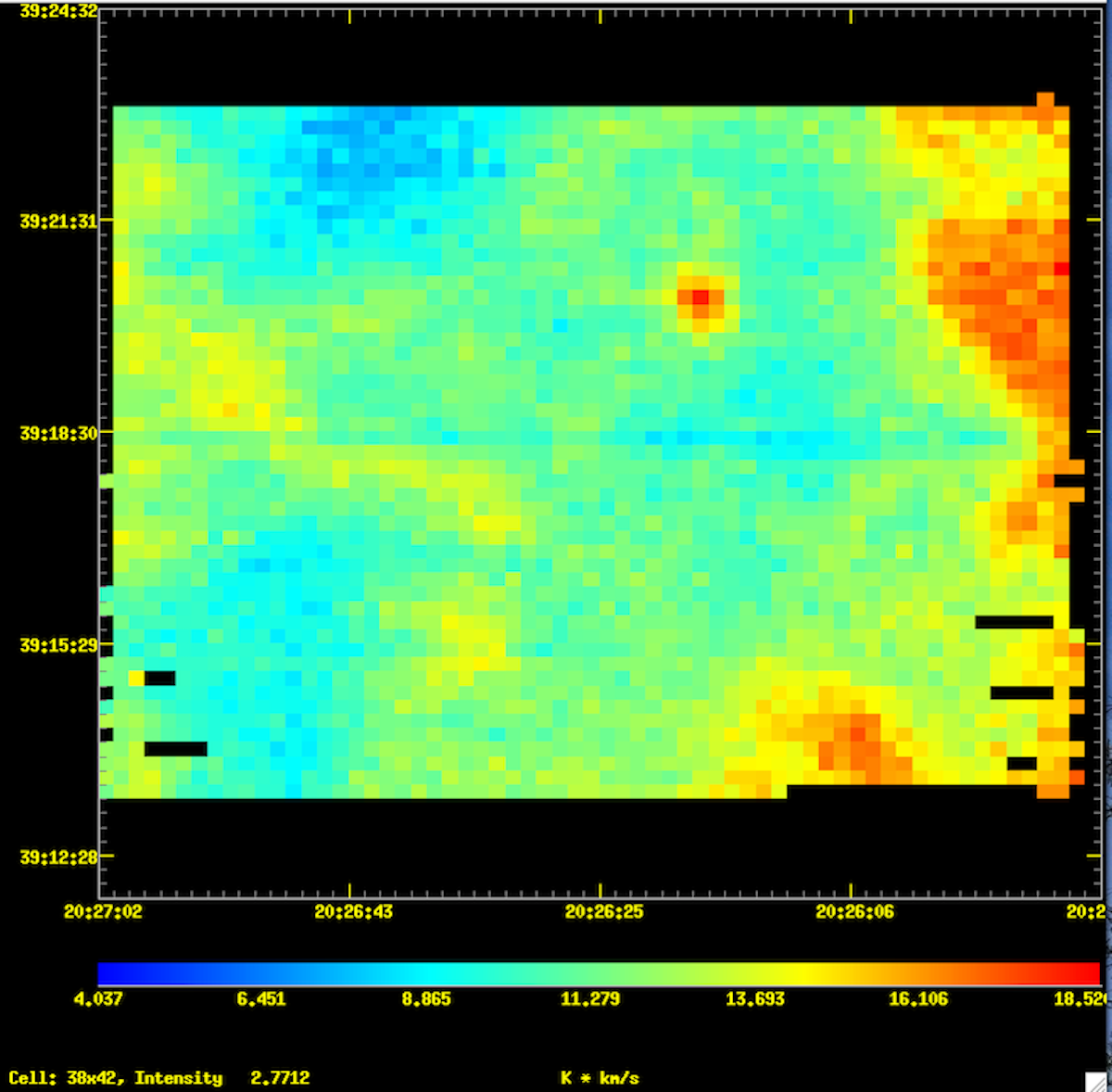
Figure 2: OTF Map
You can 'repair' missing cells if there is valid data adjacent to the missing cells; either above & below or left & right. Missing cells will be filled with an interpolation of any available adjacent cells.
Linuxpops(O) >>
Linuxpops(O) >>
otf /c otffixbadcells (
'ofix' is an alias to
this command )
Linuxpops(O) >>
Same plot with missing cells filled in.
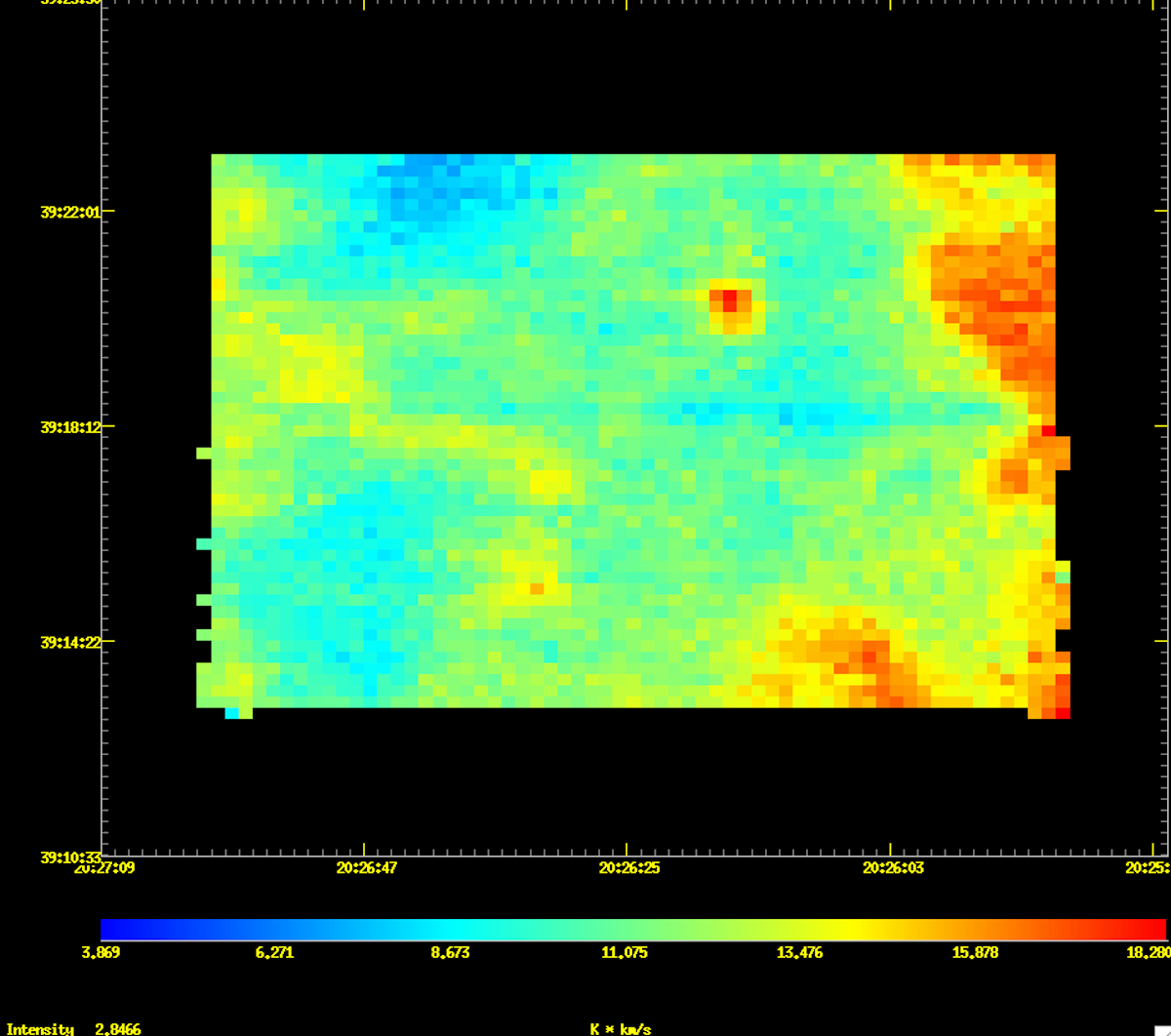
Figure 3: OTF Map with missing cells repaired
Large scale OTF Map
It's possible to 'mosaic' multiple maps together to make a larger map. This process requires a more rigorous process as you need to define all parameters manually. Better yet, edit a script that contains all the parameters defines and just load it. This allows you to repeatedly load the same large scale map parameters until you have everything the way you like.
Here is an example file:
#
# Configure Cygnus Map
# field center for the tiles:
# 20:31:36 +39:48:12 J2000.0 CygX_cent 5. LSR RAD
#
# in degrees
#
otf_map_ra = 307.9
otf_map_dec = 39.803333333
#
# in arc-seconds
#
otf_nyquistra = 14.0
otf_nyquistdec = 14.0
#
# in degrees
#
otf_map_xsize = 3.75
otf_map_ysize = 1.85
#
otf_single_spec = 256
otf_single_bin = 4
#
# Preview, Fast, Step
# 0 1 2
otf_load_choice = 1
# Set baselines and integration channels +/- 1 about 255
otf_baselines = 1
bset /c
nbaseset 0 5 220
nbaseset 1 -1 -1
nbaseset 2 -1 -1
nbaseset 3 360 510
#
otf_bint_chan = 254
otf_eint_chan = 256
#
# gray, pseudo, flame1, flame2, flame3, flame4, flame5, flame6
# 0 1 2 3 4 5 6 7
otf_color = 2
otf_gamma = 0.4
otf_grid_scale = 1.0
#
# H-POL, Upper sideband
otf_if_choice = 0
#
You can always inspect the OTF parameters anytime by issuing the command:
Linuxpops(O) >>
Defined Dynamic Variables
E: otf_cols: (int) 280
E: otf_rows: (int) 264
E: otf_map_xcell: (int) 10
E: otf_map_ycell: (int) 10
E: otf_bint_chan: (int) 254 Beginning integration channel/region
E: otf_eint_chan: (int) 258 Ending integration channel/region
E: otf_3d_bchan: (int) 231 Beginning channel of a 3d
data cube
E: otf_3d_echan: (
int) 281 Ending channel of a 3d
data cube
E: otf_3d_interp: (int) 8 # of planes to create b/t channels in a 3d
data cube
E: otf_movie_bchan: (int) 216 Beginning channel of 'vel' run
E: otf_movie_echan: (int) 296 Ending channel of 'vel' run
E: otf_movie_nchan: (
int) 2 Number of channels to
avg for 'vel' run
E: otf_cutoff: (int) 0 % of the bottom-end of
data to cut off
E: otf_baselines: (int) 1 Remove baselines from individual spectral
E: otf_color: (int) 1 gray, pseudo, flame1, flame2, flame3, flame4, flame5, flame6
E: otf_ephem_obj: (int) 0 If non-zero, Ignore source Ra & Dec when gridding
E: otf_single_spec: (int) 256 Which Spectral Channel to plot in lower left window
E: otf_if_choice: (int) 0 Which IF to process
E: otf_load_choice: (int) 1 Preview, fast, step
E: otf_single_bin: (int) 4 Number of channels to bin for 'otf_single_spec'
E: otf_ignore_color: (int) 1 If
true, ignore changes in color slow internet
helperE: otf_ignore_repaint: (int) 0 If true, ignore repaints of grid between tile loads
E: otf_show_beam_size: (int) 1 If True, place a beam size circle on plot
E: otf_chan_map_cent: (
int) 256
OTF Channel Map Center Channel
E: otf_chan_map_cols: (int) 3
OTF Channel Map # of Columns
E: otf_chan_map_rows: (
int) 3
OTF Channel Map # of Rows
E: otf_chan_map_avg: (int) 2
OTF Channel Map # os Chans to Avg
E: otf_baseline_order: (int) 0 The 'order' of baseline removal
E: otf_show_regions: (int) 0 Show region outlines, if True & loaded
E: otf_noint: (
int) 512 Number of channels in
OTF bandpass
E: otf_nyquistra: (double) 13.4114 Size of individual cells in RA
E: otf_nyquistdec: (double) 12.0702 Size of individual cells in Dec
E: otf_map_ra: (double) 339.3110 Center of Map in RA
E: otf_map_dec: (double) 75.3550 Center of Map in Dec
E: otf_map_xsize: (double) 0.2623 Size of map in RA
E: otf_map_ysize: (double) 0.2213 Size of map in Dec
E: otf_grid_scale: (double) 1.0000 Magnification scale of plot
E: otf_gamma: (double) 1.0000 Map Gamma correction
E: otf_size_factor: (double) 4.0000 Scale factor
for Automatic
OTF Map creation
E: otf_delay: (double) 0.0000e+00 Delay used for velocity movie
E: otf_3d_vrange: (double) 1.0000 Scaling factor for Vel Range: nominally 1.0
E: otf_3d_urms: (
double) 100.0000 Max
rms allowed in 3d Cube output
E: otf_map_velocity: (double) -4.0000 Velocity of
OTF Map
E: otf_map_restfreq: (
double) 230537.9900 Rest Freq of
OTF Map
E: otf_map_freqres: (double) 1.0000 Backend Resolution of
OTF Map
E: otf_zrange_factor: (double) 0.2500 The factor to multiply the z-axis by if non-zero
Linuxpops(O) >>
Then, once again, pass these parameters to the gridder:
Linuxpops(O) >>
Initialize
OTF Gridder: y/
N ?y
Linuxpops(O) >> # Initializing
OTF Dataserv
Linuxpops(O) >> # To DATASERV: otflockgrid 0
Linuxpops(O) >> # To DATASERV: otfgridinit
Linuxpops(O) >> # To DATASERV: filename /home/
data/ssk/sdd_ffb.ssk_103
Linuxpops(O) >> # To DATASERV:
gfilename /home/
data/ssk/gsdd_ffb.ssk_103
Linuxpops(O) >> # To DATASERV: baselines 1 234 330 511 -1 -1 -1 -1
Linuxpops(O) >> # To DATASERV: otfbaseline 1
Linuxpops(O) >> # To DATASERV: otfcutoff 5
Linuxpops(O) >> # To DATASERV: ig_repaints 0
Linuxpops(O) >> # To DATASERV: otfbeamsize 1
Linuxpops(O) >> # To DATASERV: otfifchoice 0
Linuxpops(O) >> # To DATASERV: otfchans 262 263
Linuxpops(O) >> # To DATASERV: otfsinglechan 256
Linuxpops(O) >> # To DATASERV: otfsinglebin 4
Linuxpops(O) >> # To DATASERV: otfgridscale 1.000000
Linuxpops(O) >> # To DATASERV: otfgamma 1.000000
Linuxpops(O) >> # To DATASERV: otfloadchoice fast
Linuxpops(O) >> # Skipping
OTF Color Selection;
'otf_ignore_color' Non-Zero
Linuxpops(O) >> # To DATASERV: otfautoconfig 1
Linuxpops(O) >> # To DATASERV: otfgridra 307.900000
Linuxpops(O) >> # To DATASERV: otfgriddec 39.387361
Linuxpops(O) >> # To DATASERV: otfgridsizera 3.864771
Linuxpops(O) >> # To DATASERV: otfgridsizedec 2.798542
Linuxpops(O) >> # To DATASERV: otfgridcellsizera 14.000000
Linuxpops(O) >> # To DATASERV: otfgridcellsizedec 14.000000
Linuxpops(O) >> # To DATASERV: otflockgrid 0
Now load in the current file's data:
Linuxpops(O) >>
Linuxpops(O) >> # To DATASERV: otfgridload 3479 3567
Linuxpops(O) >>
Here is the result of loading just a single tile into our mosaic.
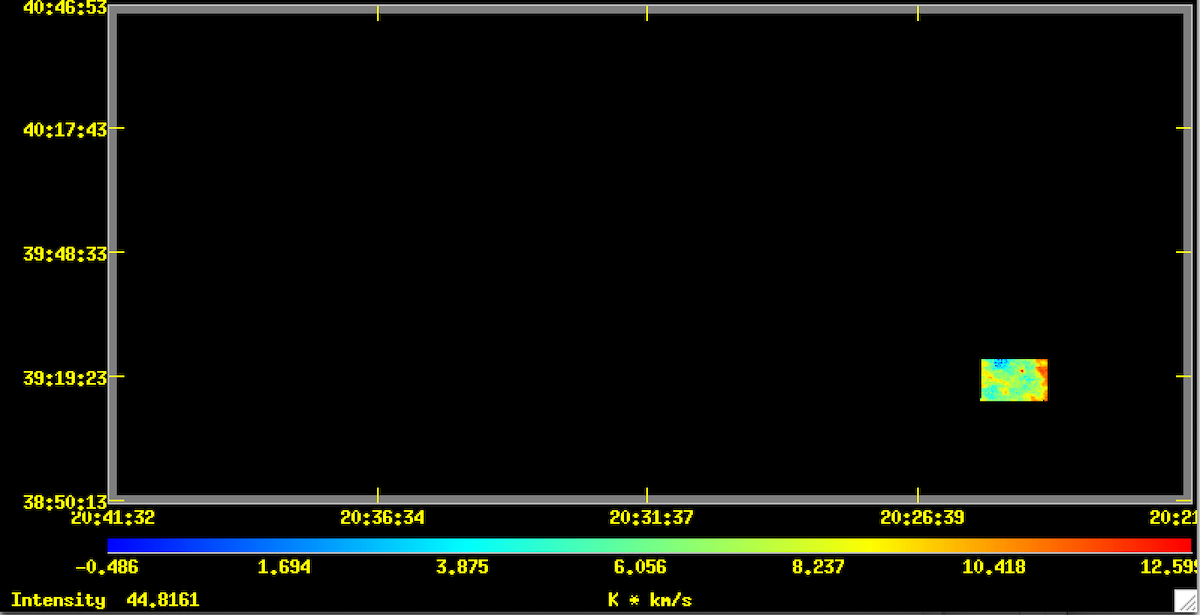
Figure 3: OTF Mosaic Map with a single tile loaded
As you can see, it looks like a miniature version of the single map above set against a larger field.
Now you can load other files/tiles.
Set the filenames:
Linuxpops(O) >>
Linuxpops(O) >> filename /home/
data/ssk/sdd_ffb.ssk_002
Linuxpops(O) >> # Loading File /home/
data/ssk/sdd_ffb.ssk_002
Linuxpops(O) >> # Data File is SMT Data
Linuxpops(O) >> # Found 840 Scans; 3 Sources
Linuxpops(O) >> # To DATASERV: filename /home/
data/ssk/sdd_ffb.ssk_002
Linuxpops(O) >> # To DATASERV:
gfilename /home/
data/ssk/gsdd_ffb.ssk_022
Linuxpops(O) >> # To DATASERV: filename /home/
data/ssk/sdd_ffb.ssk_002
Linuxpops(O) >> # To DATASERV:
gfilename /home/
data/ssk/gsdd_ffb.ssk_002
Linuxpops(O) >>
Set the new source name:
Linuxpops(O) >>
Linuxpops(O) >> source CO21_CygX_087
Linuxpops(O) >> # Source: CO21_CygX_087, Found in 728 times in /home/
data/ssk/sdd_ffb.ssk_002
Linuxpops(O) >>
Set beginning and ending scan numbers:
Linuxpops(O) >>
Linuxpops(O) >> bscan 131
Linuxpops(O) >> escan 221
Linuxpops(O) >>
Load the file into the grid:
Linuxpops(O) >>
Linuxpops(O) >> # To DATASERV: otfgridload 131 221
Linuxpops(O) >>
Do the same for all remaining tiles and you end up with a map like this:
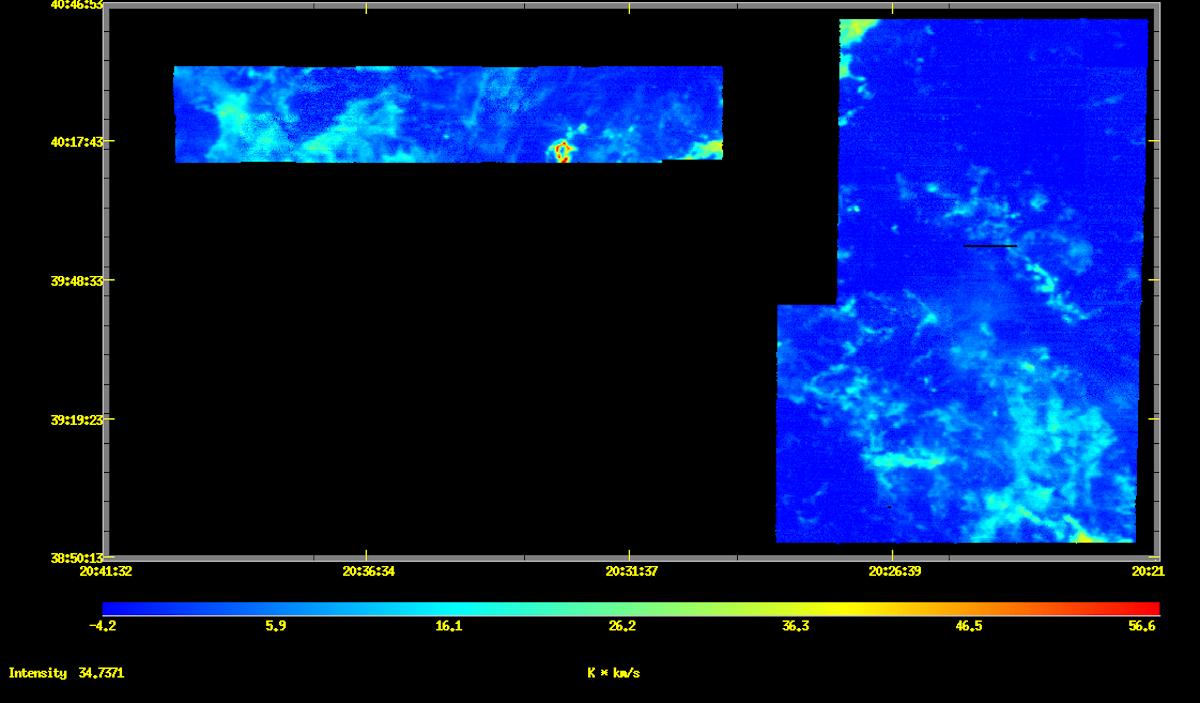
Figure 4: Partially completed OTF Mosaic of Cygnus Complex
If you left-click on the map anywhere in the filled area, a popup window will revel a spectral plot of that cell. Click the left mouse button and hold it down and drag the mouse around to continually display the various cell plots within the map.
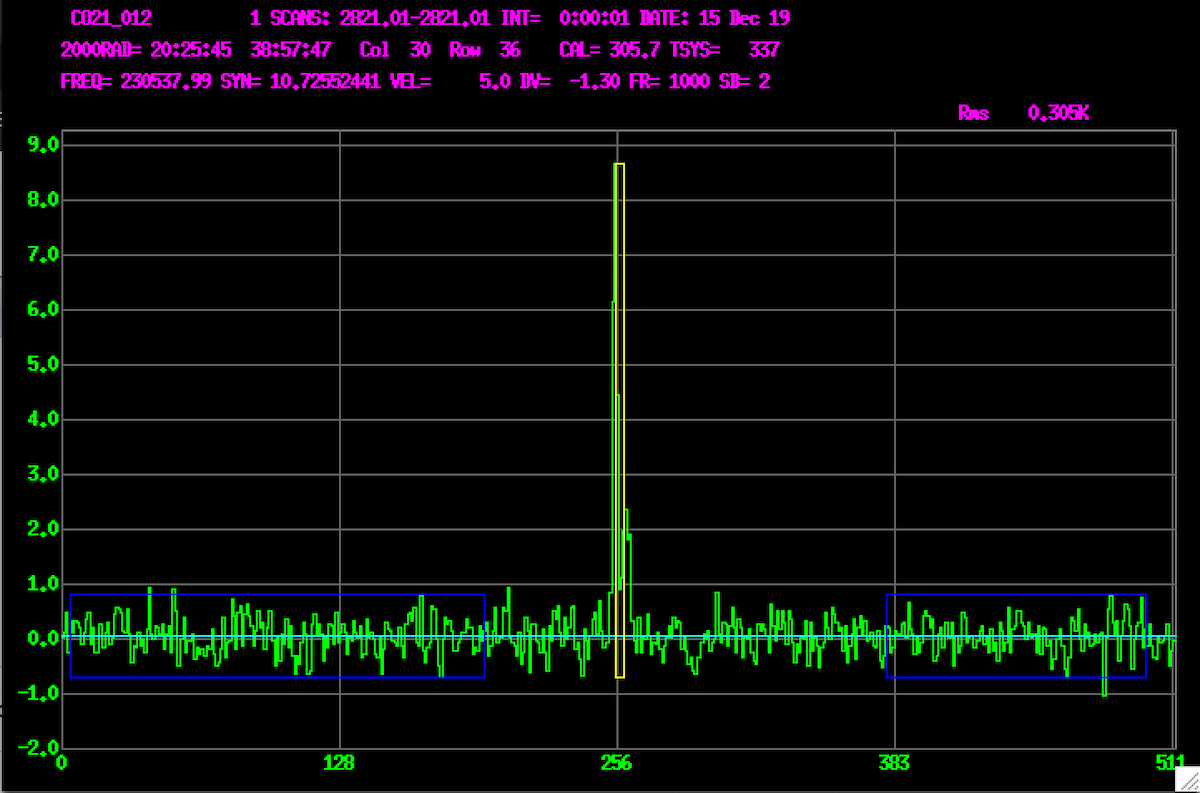
Figure 5: Sample spectral plot contained within the map
Hot Keys
There are several 'hot-keys' defined for each plot window:
Press the Following Keys in Either the
OTF or Spectral Plot Windows
Press 1 key for Set Lower Level Cutoff to 10 percent
Press 2 key for Set Lower Level Cutoff to 20 percent
Press 3 key for Set Lower Level Cutoff to 30 percent
Press 4 key for Set Lower Level Cutoff to 40 percent
Press 5 key for Set Lower Level Cutoff to 50 percent
Press 6 key for Set Lower Level Cutoff to 60 percent
Press 7 key for Set Lower Level Cutoff to 70 percent
Press 8 key for Set Lower Level Cutoff to 80 percent
Press 9 key for Set Lower Level Cutoff to 90 percent
Press 0 key for Set Lower Level Cutoff to Full Range
Press b key for Place a 'beam-size' marker on screen
Press B key for Toggle the Removal of Baselines
Press d key for Toggle up through Colors of Regions
Press D key for Toggle Down through Colors of Regions
Press f key for Set Color Scheme to Flame (Repeat to Toggle Through all)
Press g key for Set Color Scheme to Grayscale
Press i key
for Show Map in Interp
ModePress l key for Toggle Region Labels
Press
m key
for Show Channel Map Mosaic
Press o key for Reset Map to Original Values
Press p key for Set Color Scheme to Pseudo
Press <control> + p key
for Screen Capture
OTF Plot
Press r key
for Revert Map to Regular
ModePress R key for Show a Map of RMS Values
Press <control> r key for Toggle Region Outlines
Press t key for Show a Map of Tsys Values
Press T key for Show a Map of Integrated Time Values
Press Up-Arrow key for Move Lower Threshold Up 1%
Press Down-Arrow key for Move Lower Threshold Down 1%
Press <Control> Up-Arrow key for Increase Gamma Effect 5%
Press <Control> Down-Arrow key for Decrease Gamma Effect 5%
Press <shift> Up-Arrow key for Increase Scale 5%
Press <shift> Down-Arrow key for Decrease Scale 5%
Press the Following Keys Spectral Plot Windows
Press Up-Arrow key for Move Integration Region Up
Press Down-Arrow key for Move Integration Region Down
Press <Control> Up-Arrow key for Move Upper Integration Channel Up
Press <Control> Down-Arrow key for Move Upper Integration Channel Down
Press <shift> Up-Arrow key for Move Lower Integration Channel Up
Press <shift> Down-Arrow key for Move Lower Integration Channel Down
Press <control> + p key for Screen Capture Spectrum Plot
Useful Information
NOTE: Important difference between otf /i and otf /p
The command:
Linuxpops(O) >>
Linuxpops(O) >>
sends the parameters and then initializes the OTF accordingly.
Linuxpops(O) >>
Linuxpops(O) >>
Only sends the parameters that control the display like integration channels, baseline regions etc. Be careful not to issue the otf /i command after you start loading tiles as it will reset everything back to zero.
If you are loading large sets of data it's useful to set otf_baselines to 0 and otf_ignore_repaint to 1 to prevent constant recalculations of integrations intensities and baseline regions.
Linuxpops(O) >>
Linuxpops(O) >> otf_baselines = 0
Linuxpops(O) >> otf_ignore_repaint =1
Linuxpops(O) >>
Also, there is no use in repainting the grid after every tile is loaded. If you are on the end of a slow internet, these come in real handy. Once all tiles are loaded then reset these to normal.
Linuxpops(O) >>
Linuxpops(O) >> otf_baselines = 1
Linuxpops(O) >> otf_ignore_repaint = 0
Linuxpops(O) >>
Set the varaible, otf_show_beam_size = 1, to place a "Beam Sized' circle on the OTF plot
Linuxpops(O) >>
Linuxpops(O) >> otf_show_beam_size = 1
Linuxpops(O) >>
Command Recap
Linuxpops(O) >>
options are:
/a Configure
internal parameter based on loaded
scan /b Send just the current baseline info to the
OTF gridder
/c Send a command directly to the
OTF gridder
/d scan_num spec-number [num-average]; plot Scan Spectra
where:
'scan_num' is the
scan number to plot
'spec-number' which 100mS spectra to plot
'num-average' Optional: Number of 100mS spectra to average
/y Assume Yes
/f Load the current file of
OTF scans
/f Do not repaint during loading (faster)
/a Auto-config Bscan & Escan (source name must be set)
/g Grab last Spectral Plot and Display
/g Grab a Plot of the Sum of all Cells
/i Init
OTF Gridder based in
internal values
/y Assume Yes
/l List all
OTF Parameters
/
m Display a Mosaic of Velocities
/o Display a 3d Profile Plot
/2 /3 /4 /5 Interpolation level
/p Push Internal Parameter to
OTF Gridder without re-initializing
/k Quick mode; Send only params that do not take a lot of time
/r Revert Gridder Plot to a Regular Intensity map
/t Change
OTF gridder plot to Tsys
/t Change
OTF gridder plot to
rms /t Change
OTF gridder plot to integration time
/t Change
OTF gridder plot to hires Interpolation
/v Perform Velocity Movie based on Internal Parameter
/r Record individual frames
/i Interpolate individual frames
/w Whoa: Send a done command to the Gridder
/3 Write a 3D Data Cube file to be used in CloudCompare
/h help
See Also:
Linuxpops(O) >>
Useful Aliases:
ofix :
otf /c otffixbadcells
ormbad :
otf /c otfrmbadchan
oslice : otfslice
Dataserv help:
You can query the datasrev OTF gridder directly via otf /c help or via the alias ohelp
Linuxpops(O) >>
Linuxpops(O) >> ohelp
Linuxpops(O) >> # To DATASERV: help
Linuxpops(O) >>
Command Arguments
allowvelshift: 0 | 1, toggle allowVelShift
badchan: 0 | 1, toggle badchannel checking
baselines: 8n, Set baseline regions to these 8 numbers
clearignore: Clear Ignore
scan array.
debug: Turn on Debugging Output
ephemobj: Lock Grid For Ephem Objects
etimeclear: REset Function Call Time Listing
etimedump: Dump .h format of Function Calls
etimeshow: Show Function Call Time Listing
fixedzero: Set zero point to center
filename: Set the Data File Name
hard_copy: Print
PS file of selected window
help: Displays this list
ig_gains: 0 | 1, Toggle gains ignoring
ig_pos: Ignore Source Position
ig_repaints: Ignore All Repaints Until NOT Set
load: Load a Script of Commands
mallocmap: Print out malloc map.
otf3dcube: bc, ec: plot 3d of Grid
otf3dplot: bc, ec: plot 3d of Grid
otfbadchan: Array of bad channels
otfbaseline: 0 | 1, toggle baseline removal
otfbeamsize: 0 | 1, toggle Beam Size Marker
otfchannelmap: c,x,y,s: Draw a Channel Map x by y, start @ c, space s
otfchans: bc ec, set int. range bc to ec
otfcolorchoice: gray | pseudo |
flame[1-6], Set
otf-plot Color Choice
otfcutoff: Lower level of an
OTF Image
otfdisplayarray: 0 | 1 | 2 | 3 | 4 | 5, Time ra dec az el
otfdebug: n, set
OTF Spectral plot to n
otffixbadcells: Fill in missing
OTF cells
otfgamma: v, Set
otf-plot Gamma factor to v
otfgridcellsizedecx, Set Grid Dec size to x
otfgridcellsizera:x, Set Grid Ra size to x
otfgridchancompresi, Set Chan Smooth factor i
otfgridcols: c, Set Map X Size in Cols
otfgriddec: x, Set Grid Center Dec to x
otfgridfreqres: freq, Set Grid Freq Resolution to 'freq'
otfgridinit: Reinitializes
OTF grid array
otfgridload: bs es [
delay], loads scans bs to es
otfgridnoint: noint, Set Grid number of Channels to 'noint'
otfgridra: x, Set Grid Center Ra to x
otfgridrestfreq: freq, Set Grid Rest Freq to freq
otfgridrows: c, Set Map Y Size in Rows
otfgridscale: v, Set
otf-plot Scaling factor to v
otfgridsizedec: x, Set Grid Dec
H to x
otfgridsizera: x, Set Grid Ra W to x
otfgridsum: Show Sum of all Scans in Grid
otfgridvelocity: vel, Set Grid Velocity to vel
otfifchoice: n, Load IF Number n
otfinterp: Do a XY interpolation of
OTF grid
otflistcells: List info on each map cell
otfloadchoice: Preview|Step|Fast, Load
otflockscale: Lock Grid Scale
otfnumcolors: n, Set
otf-plot Color Range to n
otfregular: Return to raw
OTF grid
dataotfregiondelete: Delete all Regions
otfregionlist: List Loaded Regions
otfregionload: Load a Region file
otfregionon: Show Region Outlines
otfrmbadchan: Remove Bad Channels From Grid
otfrms: Plot
rms distribution on Map
otfrmrms: rmslimit, Remove Cells with
rms > rmslimit
otftsys: Plot Tsys distribution on Map
otftime: Plot Total Integrated Time on Map
otfsendplot: Send the Current Spectral Plot to Linuxpops
otfsinglebin: n, num of channels to bin in singleplot
otfsinglechan: n, set the
OTF singleplot to chan #n
otfslice: Write out a single slice through map
otfstatus: Print a brief summary of the current
OTF map
otfvelrun: b e # dir [
delay], vel movie
otfzap: col row, zap the
data in cell: col x row
wotfinterp: Write out a XY interpolation of
OTF grid
printdata: n, Print out
N Lines of Data
printignorescans: Print out scans ignored
printmapscans: Print out scans in
OTF grid
q: Exit program
quit: Exit program
scan_done: n, display
scan #n
set_clip: n, Set beginning and ending clip length
status: Shows brief status msg
stop: Stop any loops,load,velr
Press the Following Keys in Either the
OTF or Spectral Plot Windows
Press 1 key for Set Lower Level Cutoff to 10 percent
Press 2 key for Set Lower Level Cutoff to 20 percent
Press 3 key for Set Lower Level Cutoff to 30 percent
Press 4 key for Set Lower Level Cutoff to 40 percent
Press 5 key for Set Lower Level Cutoff to 50 percent
Press 6 key for Set Lower Level Cutoff to 60 percent
Press 7 key for Set Lower Level Cutoff to 70 percent
Press 8 key for Set Lower Level Cutoff to 80 percent
Press 9 key for Set Lower Level Cutoff to 90 percent
Press 0 key for Set Lower Level Cutoff to Full Range
Press b key for Place a 'beam-size' marker on screen
Press B key for Toggle the Removal of Baselines
Press d key for Toggle up through Colors of Regions
Press D key for Toggle Down through Colors of Regions
Press f key for Set Color Scheme to Flame (Repeat to Toggle Through all)
Press g key for Set Color Scheme to Grayscale
Press i key
for Show Map in Interp
ModePress l key for Toggle Region Labels
Press
m key
for Show Channel Map Mosaic
Press o key for Reset Map to Original Values
Press p key for Set Color Scheme to Pseudo
Press <control> + p key
for Screen Capture
OTF Plot
Press r key
for Revert Map to Regular
ModePress R key for Show a Map of RMS Values
Press <control> r key for Toggle Region Outlines
Press t key for Show a Map of Tsys Values
Press T key for Show a Map of Integrated Time Values
Press Up-Arrow key for Move Lower Threshold Up 1%
Press Down-Arrow key for Move Lower Threshold Down 1%
Press <Control> Up-Arrow key for Increase Gamma Effect 5%
Press <Control> Down-Arrow key for Decrease Gamma Effect 5%
Press <shift> Up-Arrow key for Increase Scale 5%
Press <shift> Down-Arrow key for Decrease Scale 5%
Press the Following Keys Spectral Plot Windows
Press Up-Arrow key for Move Integration Region Up
Press Down-Arrow key for Move Integration Region Down
Press <Control> Up-Arrow key for Move Upper Integration Channel Up
Press <Control> Down-Arrow key for Move Upper Integration Channel Down
Press <shift> Up-Arrow key for Move Lower Integration Channel Up
Press <shift> Down-Arrow key for Move Lower Integration Channel Down
Press <control> + p key for Screen Capture Spectrum Plot
Linuxpops(O) >>
Regions
New to OTF analysis is a feature to outline defined regions on the OTF gridder. The feature is useful for configuring a map and displaying what areas that need completion. When you have many tiles combined to for a single map, it becomes obvious the progress you are making.
Linuxpops(O) >>
Linuxpops(O) >> region /h
Map Region Sub System
Usage: region [region_file] [options]
where: 'region_file' is the region file to load
options are:
/e Erase all loaded regions
/l List loaded regions
/r Read/Load in a region file
/a Automatically set
OTF map extents based on loaded regions
/d Tell <i>
dataserv</i> to also load the file of regions
NOTE: Adjust 'otf_size_factor' to add extra padding to map
/h help
Linuxpops(O) >>
The 'region' file is in the same format as the DS9 regions file:
# Region file format: DS9 version 4.1
global color=green dashlist=8 3 width=1 font=
"helvetica 10 normal roman" select=1 highlite=1 dash=0 fixed=0 edit=1 move=1
delete=1 include=1 source=1
fk5
#
# Region #1
#
box(20:24:44.4114,38:58:12,10',10',0) # color=green width=2 text={CO21_001}
box(20:24:43.4389,39:08:12,10',10',0) # color=green width=2 text={CO21_002}
box(20:24:42.4582,39:18:12,10',10',0) # color=green width=2 text={CO21_003}
box(20:24:41.4694,39:28:12,10',10',0) # color=green width=2 text={CO21_004}
etc ...
To load a region file:
Linuxpops(O) >>
Linuxpops(O) >> region /r kong.reg
Linuxpops(O) >>
addRegionBox(indx=0, color=32, ra=306.185047, dec=38.970000, rsize=0.166667, dsize=0.166667,
title=CO21_001
addRegionBox(indx=1, color=32, ra=306.180995, dec=39.136667, rsize=0.166667, dsize=0.166667,
title=CO21_002
addRegionBox(indx=2, color=32, ra=306.176909, dec=39.303333, rsize=0.166667, dsize=0.166667,
title=CO21_003
addRegionBox(indx=3, color=32, ra=306.172789, dec=39.470000, rsize=0.166667, dsize=0.166667,
title=CO21_004
[snip snip, lots more messages]
BOX( 306.185047, 38.970000, 0.166667, 0.166667, 32 ) CO21_001
BOX( 306.180995, 39.136667, 0.166667, 0.166667, 32 ) CO21_002
BOX( 306.176909, 39.303333, 0.166667, 0.166667, 32 ) CO21_003
BOX( 306.172789, 39.470000, 0.166667, 0.166667, 32 ) CO21_004
[snip snip, lots more messages]
Linuxpops(O) >>
If you give the /a /d switch, the region command will self configure so that all tiles will fit into the resulting map.
Linuxpops(O) >>
Linuxpops(O) >> region /r /a /d kong.reg
Linuxpops(O) >>
In additional to the screen output listed above, you will get these additional results:
Map externs: Ra+ = 309.740367, Ra- = 306.059633, Dec+ = 40.720000, Dec- = 38.054722
Map Size: Ra = 3.680734, Dec 2.665278
# To DATASERV: otfregionload kong.reg 1.020000 0
# Auto Setting map extents to: RA: 307.900000, Dec: 39.387361, Map Width: 3.754349, Map_Height: 2.718583
Follow this up with a:
Linuxpops(O) >>
Linuxpops(O) >>
to push these new map parameters to dataserv.
 1.8.5
1.8.5 
