FB_Offsets
FB-Offsets lets the user correct anomalies in the band-pass caused by DC offsets in the baseline due to hardware issues. These issues are most common in analog filter-banks. Sometimes referred to as 'platforming'. These procedures should be used judiciously.
Synopsis
Linuxpops(
H0) >> fboffset /h
Apply Temperature Offset to block of channels
Usage: fboffset [seg] [match seg] [bmatch seg1 seg2] [options]
where: 'match' means to match 'seg' to others
where: 'bmatch' means to match 'seg' to other baseline average
where: 'seg' by itself will require mouse clicks
options are:
/a Auto set bad blocks of channels
/l List current segment offsets
/c clear out all defined fb-offsets
/h help
NOTE: the internal variable 'markers' must be set to match block boundaries
NOTE: You must have done a 'avg /b /s' prior to using 'bmatch'
See Also:
Examples
First lets look at some scans that exhibit this problem.
Linuxpops(
H0) >> # Clearing out Title Block
Linuxpops(
H0) >> # Sending SAT
struct
Linuxpops(
H0) >> # Displaying Plot:
H0
Linuxpops(
H0) >> # Spectral Line Accum
Source Freq UT-Date UTC Scan# NS Time Az El
Mode SB BKend Tsys Tcal Res Xoff Yoff
SCep 230.537990 2021.0115 16.64 4620.01 4 8 13.1 36.1 LINEBSP
H-
LSB F1M-HL 207 308 1.00 0.0 0.0
SCep 230.537990 2021.0115 16.72 4625.01 4 8 13.0 36.4 LINEBSP
H-
LSB F1M-HL 210 308 1.00 0.0 0.0
SCep 230.537990 2021.0115 16.81 4630.01 4 8 12.9 36.6 LINEBSP
H-
LSB F1M-HL 207 307 1.00 0.0 0.0
SCep 230.537990 2021.0115 18.83 4700.01 4 10 8.9 41.6 LINEBSP
H-
LSB F1M-HL 205 309 1.00 0.0 0.0
SCep 230.537990 2021.0115 18.98 4705.01 4 12 8.4 41.9 LINEBSP
H-
LSB F1M-HL 211 309 1.00 0.0 0.0
Linuxpops(
H0) >> Avg Tsys: 208.1
for 5 scans; 3.07 Minutes Int Time
Linuxpops(
H0) >> # Displaying Plot:
H0
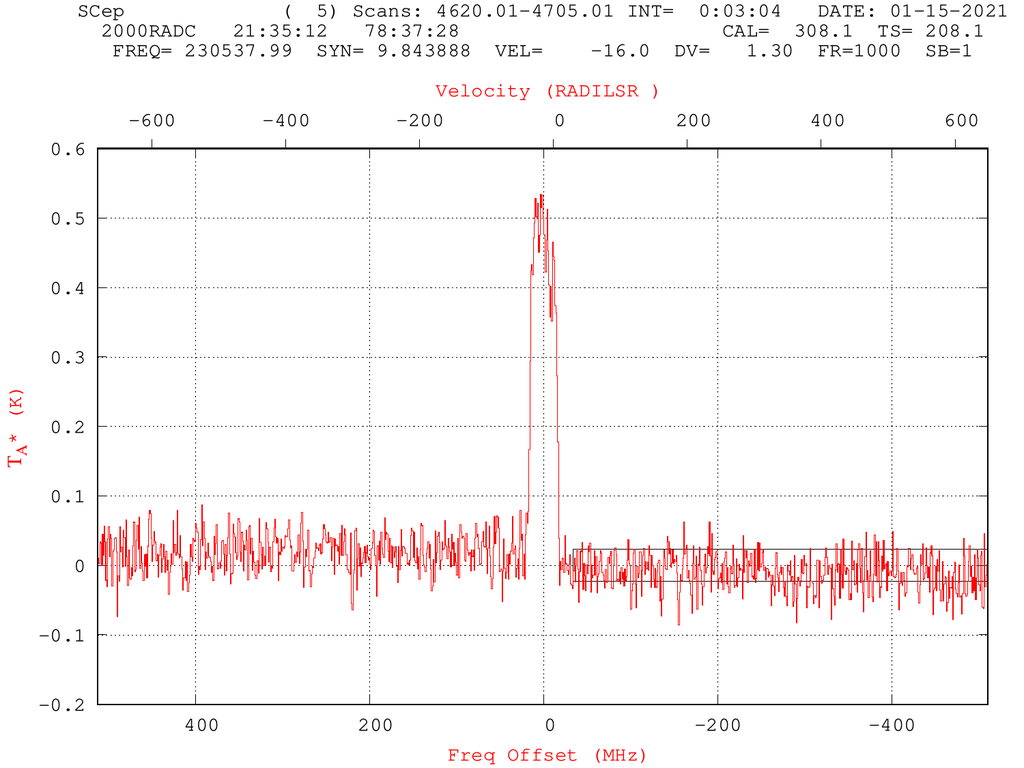
The resulting plot looks like this:
Figure #1: Average of 5 scans with a residual baseline offset in the first half
As can be seen, there is a slight offset in the first half of the plot. Let's fix that.
Markers
First set the environment variable, 'markers' to a value that represents the dividing line between the two halves. In this case, there are 1024 channels total, so, set markers to 512.
Linuxpops(
H0) >> markers=512
Linuxpops(
H0) >> # Setting markers to 512
It's also necessary to have baselines defined, as can be seen in the example above. It's best not to include the faulty sections in the baseline regions if you plan to use the automatic mode.
Now, there are two ways to execute this procedure, manually or automatically.
NOTE: If there is a strong line in any of the segments requiring offsetting, then the only proper way to perform these functions is manually as the automatic process will end up averaging in the strong line and that could effect the results.
Auto Mode
To perform the fix automatically, type:
Linuxpops(
H0) >> fboffset /a
Linuxpops(
H0) >> #
autoLevel(): Grand Avg of 478 Baseline Channels: -0.010704
Linuxpops(
H0) >> # autoLevel(): Segment 0 Avg = 0.032377, diff = 0.043081
Linuxpops(
H0) >> # autoLevel(): Segment 1 Avg = 0.004389, diff = 0.015093
Linuxpops(
H0) >> # Removing FB offset in
H0
Linuxpops(
H0) >> # Displaying Plot:
H0
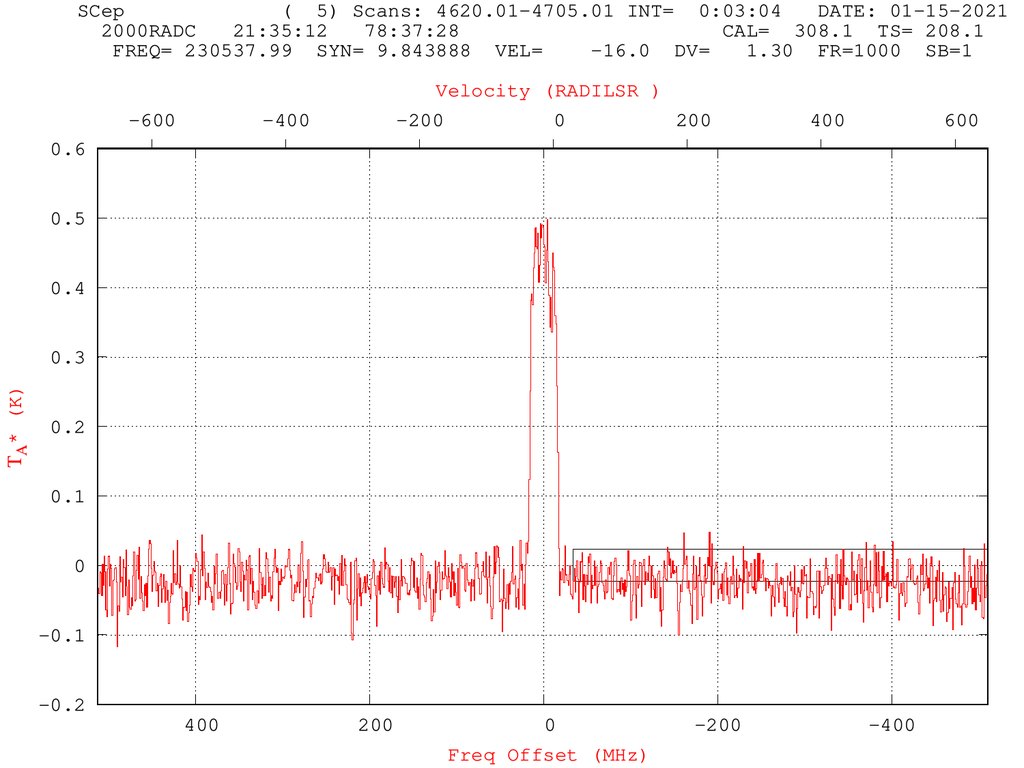
The results are show here:
Figure #2: Average of 5 scans with a residual baseline removed
Manual Mode
Alternately, you can try manual. This requires you to click the mouse on the bad sections at approximately the average level of that section. Then click the mouse a second time on the average level of a good section. The program then offset the bad section to bring it into alignment.
Start be entering the segment that's needs adjusting, counting left to right starting at 0. Markers should appear to allow you to identify the boundaries. When clicking the plot, only the Y-Axis value is important, so you can move freely, left or right, to aid in you selection. i.e., you don't have to click in the actual area of each section, only the vertical axis matters.
Just use your best guess as to what the 'average' value for each section is.
Linuxpops(
H0) >> fboffset 0
Linuxpops(
H0) >> # Displaying Plot:
H0
Linuxpops(
H0) >> # Click the Left Mouse Button on Current Value
Linuxpops(
H0) >> # tcur set to 2.912621e-02
Linuxpops(
H0) >> # Click the Left Mouse Button on Desired Value
Linuxpops(
H0) >> # tcur set to 1.765225e-04
Linuxpops(
H0) >> # Applying a 0.029 offset to segment 0
Linuxpops(
H0) >> # Removing FB offset in
H0
Linuxpops(
H0) >> # Displaying Plot:
H0
Again the results are fairly the same, although the automatic method can be more reliable.
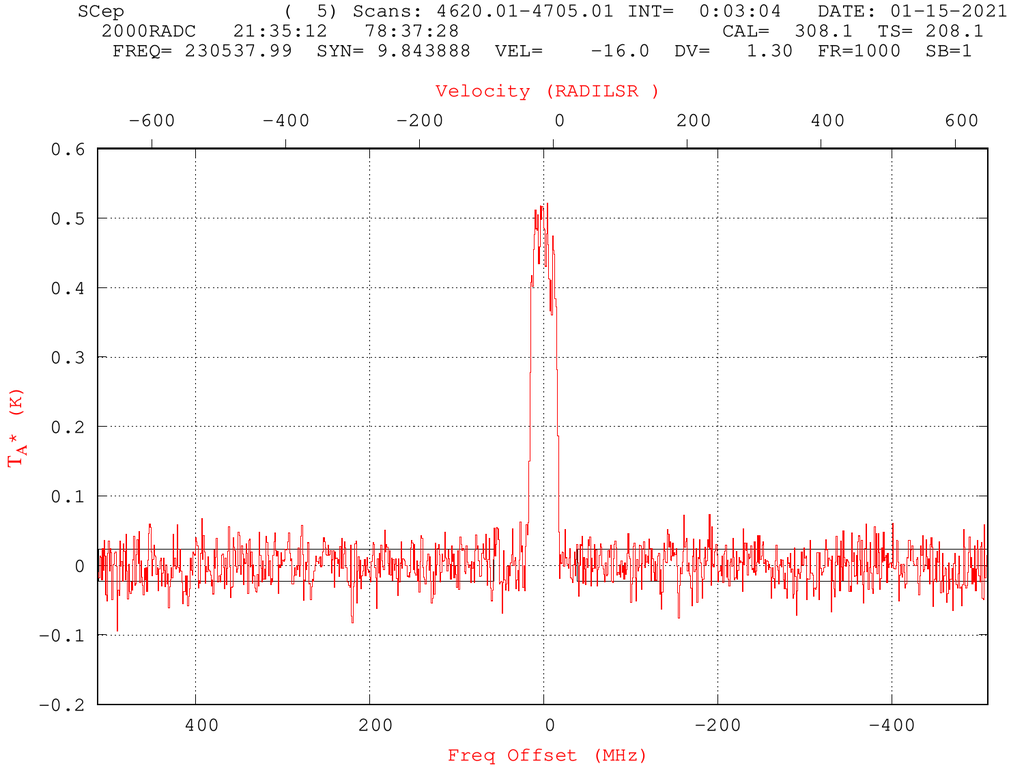
Figure #3: Average of 5 scans with a residual baseline removed manually
Alternate Method
Alternatively, you can have Linuxpops adjust the offset using a slightly more accurate method. First you must define at least two baseline regions, one encompassing the bad region, but not including and line features, and a second region containing the 'good' sections you wish to match.
Once again, accumulate the scans as above and define two baseline regions outside the central emission line.
NOTE: Only define one baseline region per markers segment.
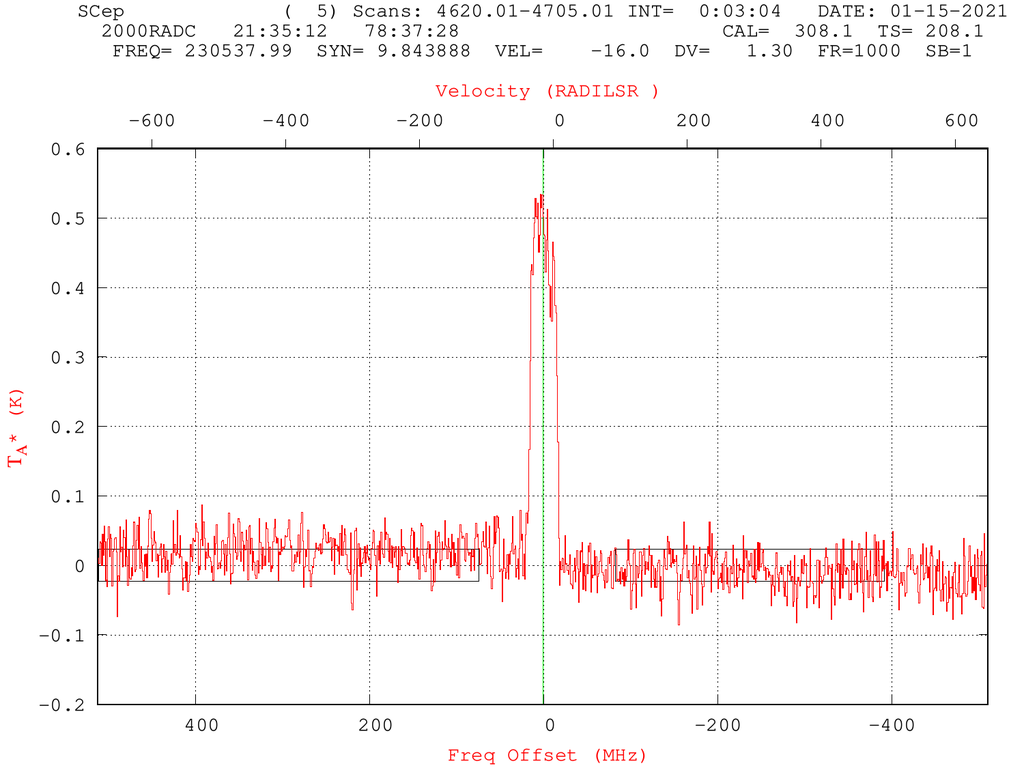
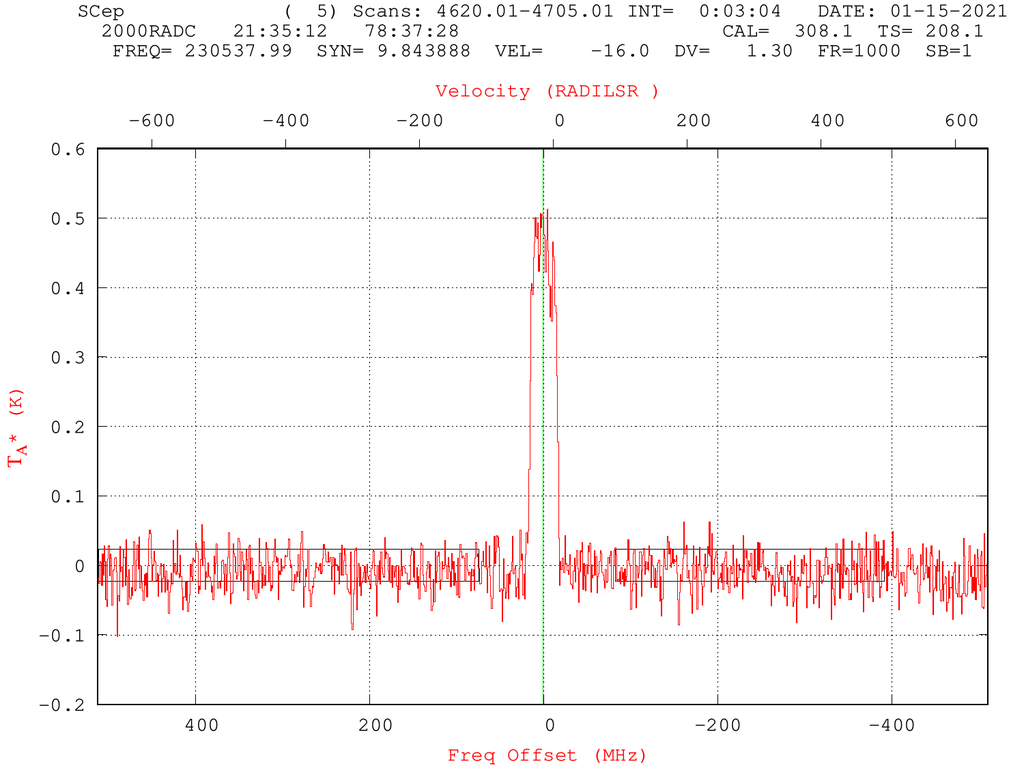
Figure #4: Average of 5 scans with offset and baselines defined
Now, perform an average on each baseline segment:
Linuxpops(
H0) >>
avg /b /s
Linuxpops(
H0) >> # computeEachBaseLine(): Average values for Baseline Region: 1, -0.009649
Linuxpops(
H0) >> # Average Bandpass Temperature, using 746 channels: 0.004516
K
Now tell Linuxpops to adjust bandpass segment 0 to match segment 1 using the baseline averages.
Linuxpops(
H0) >> fboffset bmatch 0 1
Linuxpops(
H0) >> # Displaying Plot:
H0
Linuxpops(
H0) >> # Applying a 0.028 offset to segment 0
Linuxpops(
H0) >> # Removing FB offset in
H0
Linuxpops(
H0) >> # Displaying Plot:
H0
Figure #4: Average of 5 scans with offset removed using and baseline averages
We now recommend removing a baseline to eliminate the remaining dc-offset in the data.